
You are working a solar company and they have a lot of questions to determine the optimal system size that best matches your energy goals. Now you’ve been asked to download your SDGE Energy Usage data. There’s Green Button Data, Utility API Authorization, Two-Factor Verification or any other number of options. What do you need to do and how do you do it?

At Makello, we request either downloading Green Button data in 15 minute intervals from your SDGE account or to authorize Utility API collection of data on your behalf and this article will focus on those methods.
SDGE My Energy Center Login
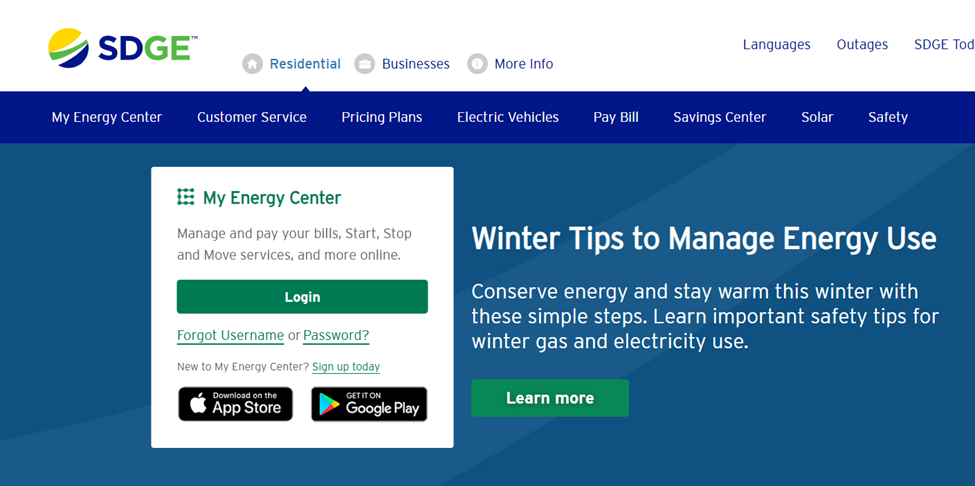
The first step to downloading your interval data from SDGE My Energy Center is to navigate to https://www.sdge.com/
Click on Login in the home page if you have already set up an online account to view your SDGE bills. First Time Users of SDGE My Energy Center should click on Set Up Today and follow the steps to register. You may have to login after registration. If you have two factor authentication activated, you will be asked to enter in a code that is sent to the email or phone number you have on file.
Green Button Data Download
After successful log in, you will see your dashboard. The dashboard design may vary due to your enrollment in a Community Choice Aggregator or not.
Click on the Usage tab at the top of the dashboard.
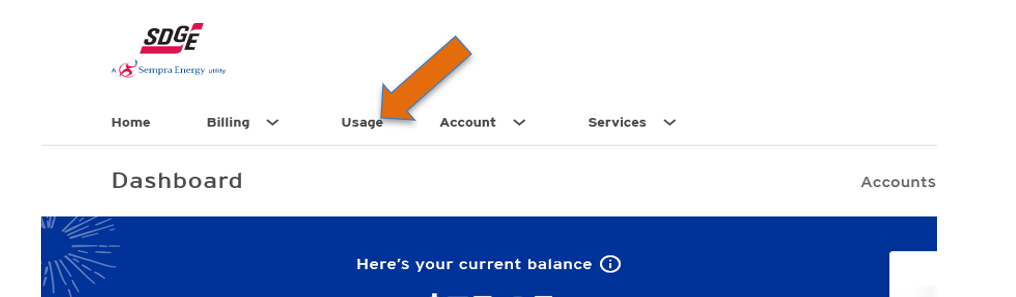
You can download your data from your Usage page.
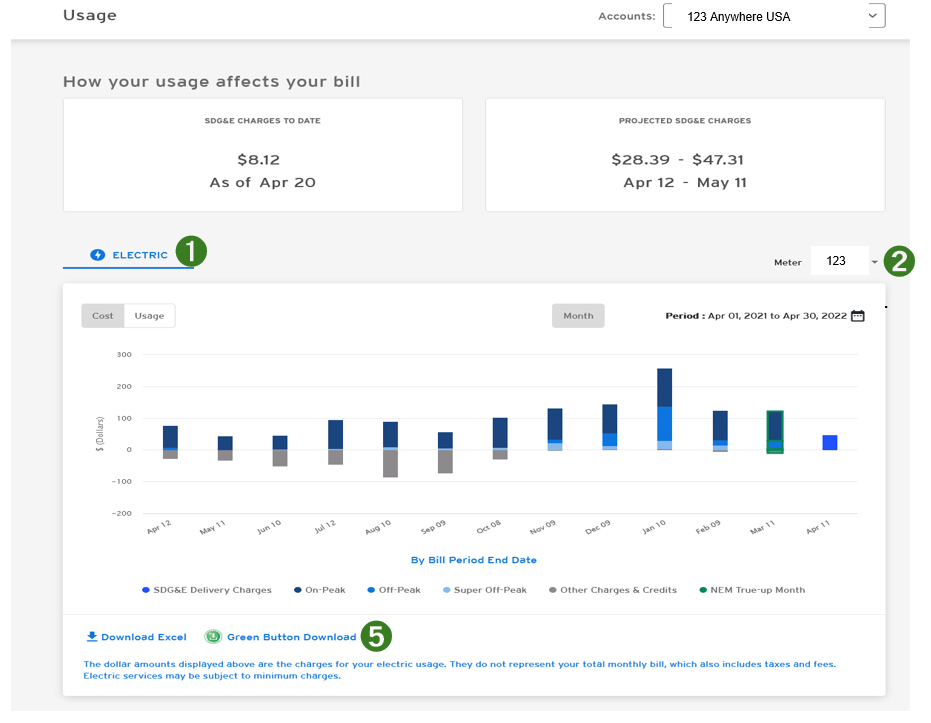
1. Select Usage from the drop down menu in the Usage Tab.
2. Select your electric Meter from the drop down menu on the right side of the page.
3. Scroll down to the bottom of the page.
4. In the bottom left corner, you will see button for Download Excel and Green Button Download.
5. Click on Green Button Download to download data.
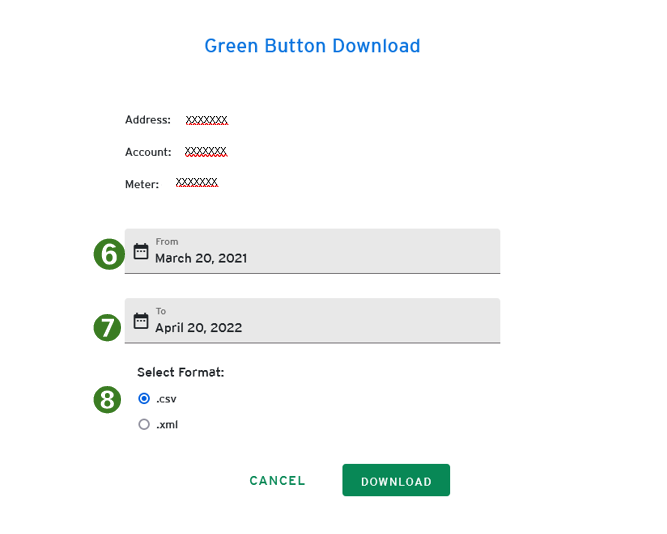
6. Set the date in the drop-down tab to download as many months of data as possible. Twelve (12) full months of data is preferred but one month of usage data is needed if available.
7. Under the Select Format heading, click .csv button (this step applies to electric meters only), then click download.
8. Under the Select Format heading, click .xml button, then click download (this step applies to both gas and electric meters for customers with both types of meters).
9. Repeat steps 1-8 for each meter that services the property, gas and electric.
Turning SDGE Two Step Verification Off or On
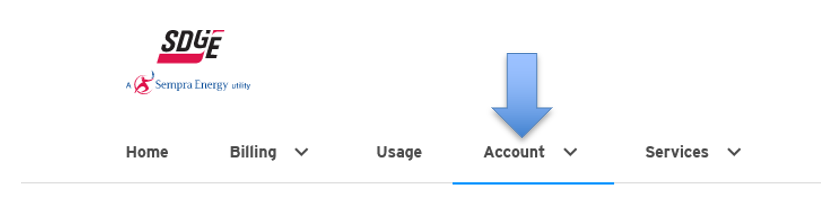
Turn 2 Step Verification off or on by clicking on Account in menu bar.
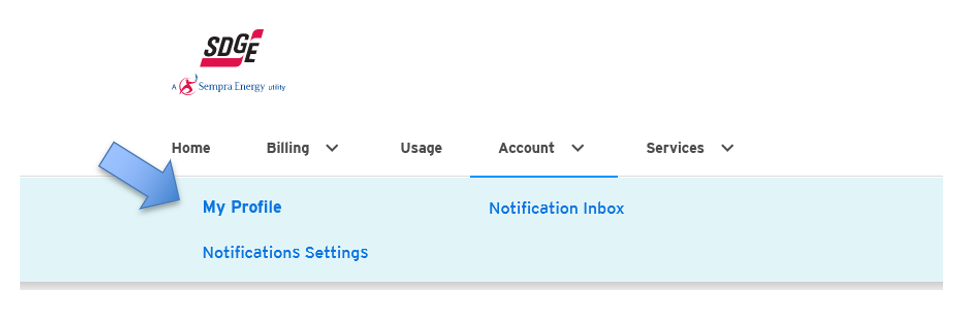
Then select My Profile from the drop down menu.
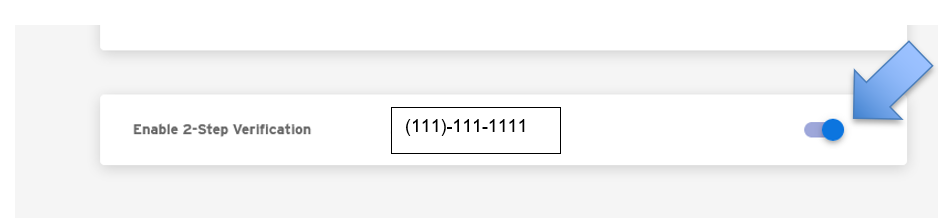
Scroll to the Enable 2-Step Verification section and click on the blue button on the right side of the screen to turn off the 2 Step Verification.
Click on Confirm in the pop up menu.
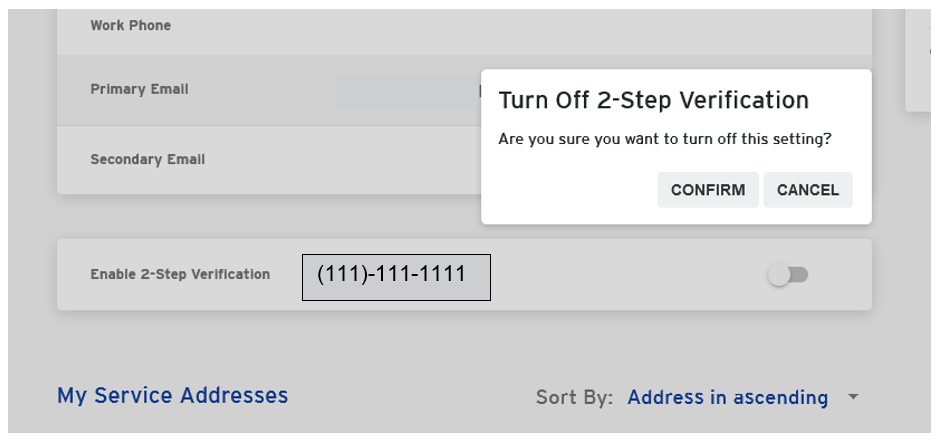
You have turned off the 2 Step Verification. Please note: 2 Step Verification must be completed prior to authorizing Utility API data collection.
To Turn 2 Step Verification back on, simply return to your Account, select My Profile, scroll down to Enable 2-Step Verification and click on the grey button on the right side of the screen, click on Confirm.
Authorization of Utility API Data Request via Link
Please click on the Utility API Authorization link provided by Makello in the email you received.
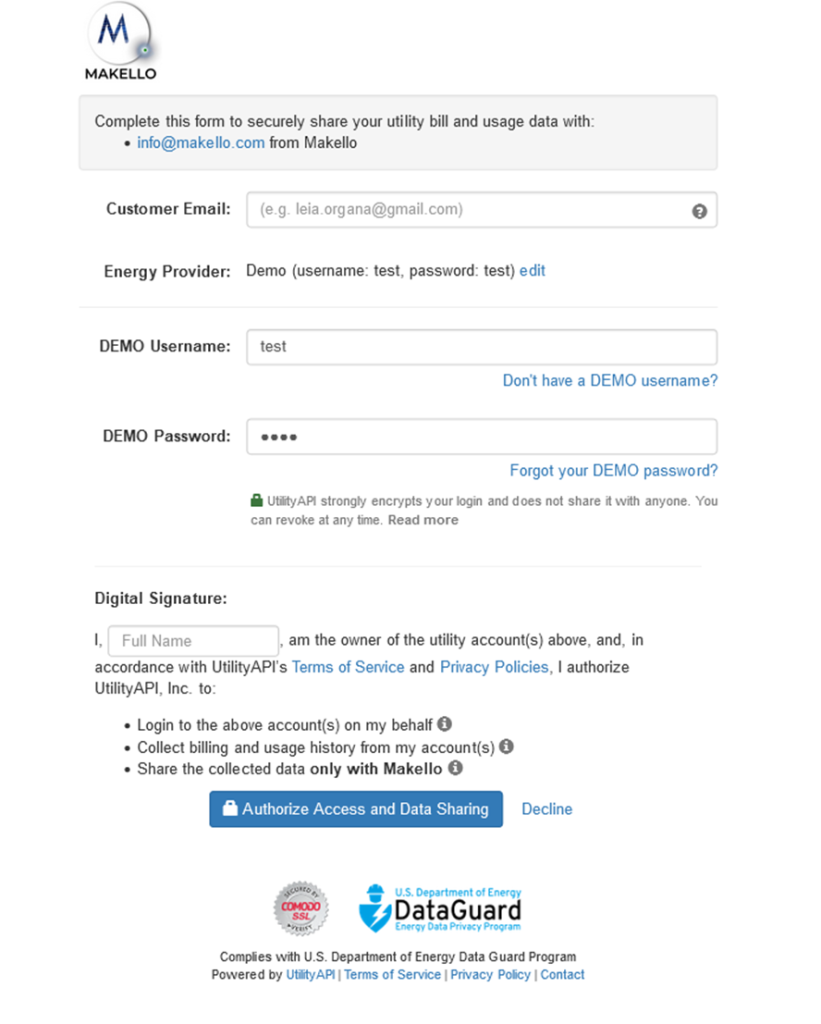
You should be brought to a screen similar to the picture below. Please provide the requested information and click Authorize Access and Data Sharing.
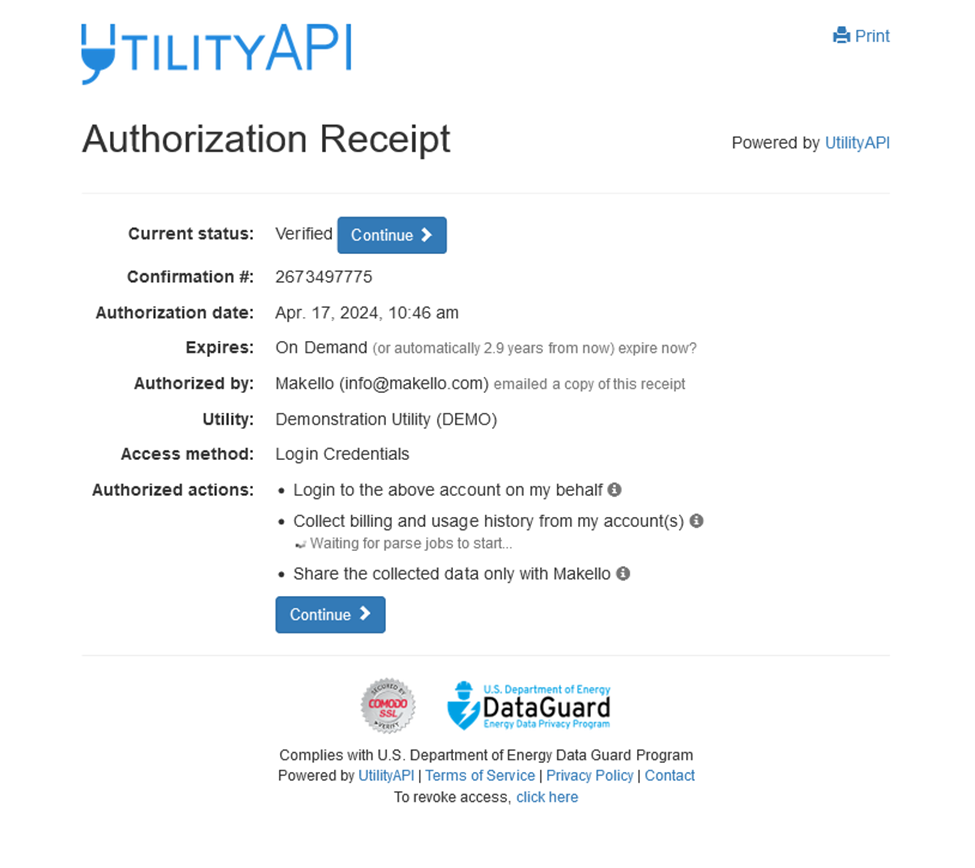
You should receive an authorization receipt similar to the picture below after authorization has been completed.
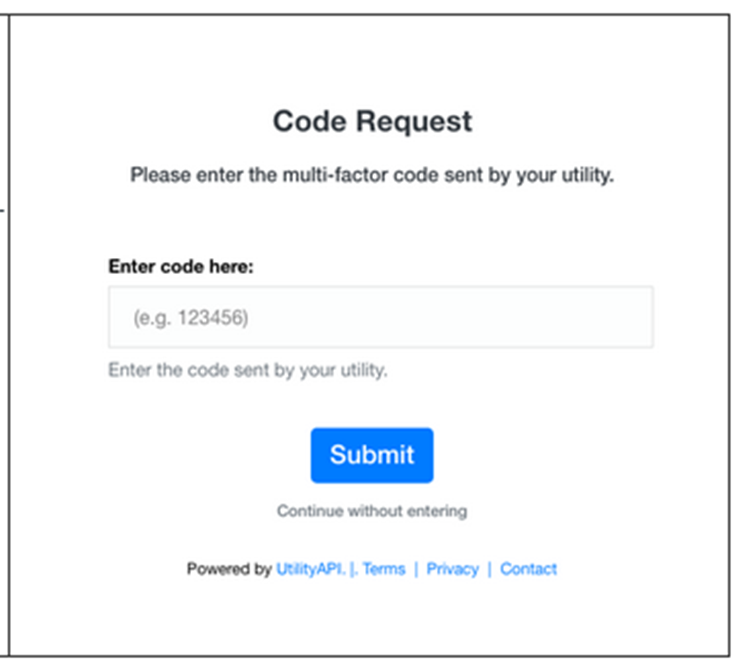
If your SDGE account has two-step verification, you should then receive a two-step verification code from SDGE sent via text message. Please enter the code in the space provided. An example of the screen where you enter the two-step verification code provided in the image below.
Alternatively, you may manually deactivate and reactivate the multi-step verification for your SDGE by following the steps previously outlined.
Please note: 2 Step Verification must be completed prior to authorizing Utility API data collection.
Utility API Data Collection Refresh Historical Data
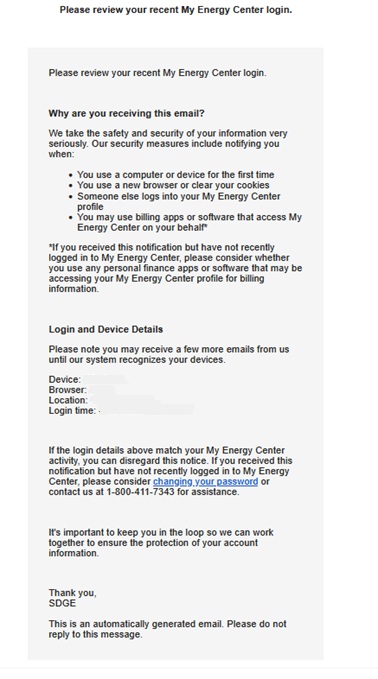
When Utility API Refreshes Data via a new collection, you may receive a message informing you of the activity on your account.
You may find out more about Utility API https://utilityapi.com/
SDGE Utility Bill Download Instructions
Next document needed is a .pdf copy of your bills
A. Click on Billing drop down menu at the top right of your dashboard.
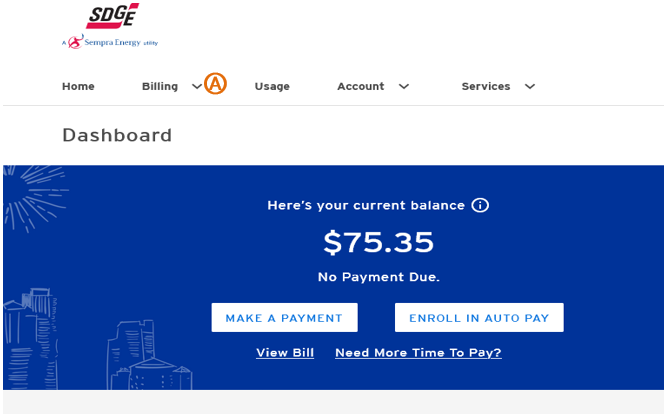
B. Click on Your Bill from the Billing drop down menu.
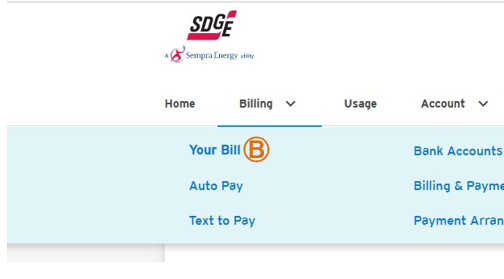
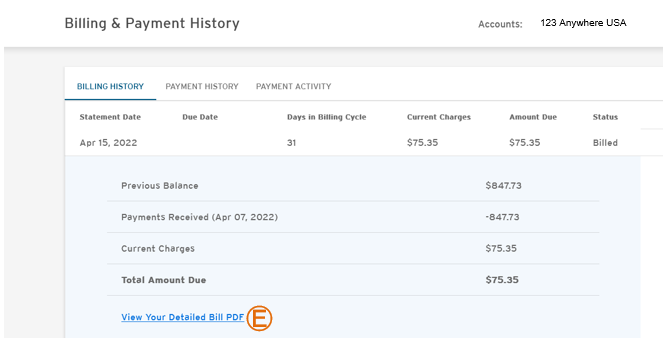
C. Click on the link for Billing & Payment History from the menu on the right side of the menu.
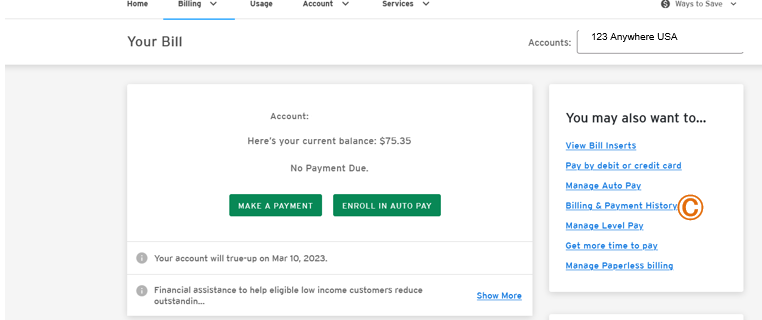
D. Click on the drop down menu arrow on the right side of the screen to display your bill.
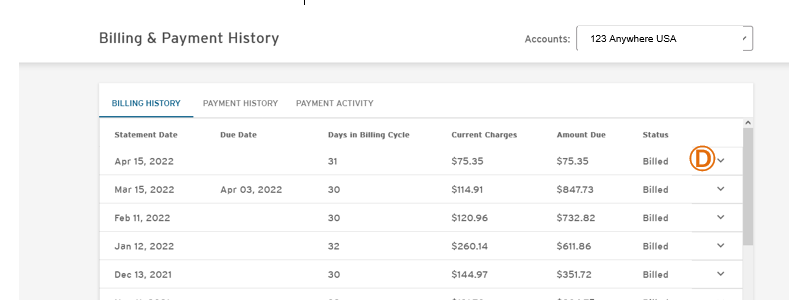
E. Click on the View Your Bill PDF link.
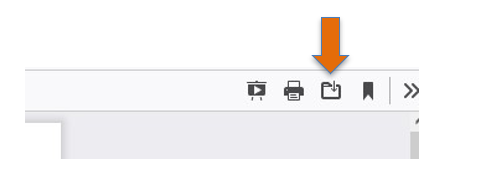
F. Click on the folder icon on your computer’s menu bar to download the file. Save the .pdf file to the folder of your choice.
G. Return to the Billing & Payment History Screen and repeat the download process detailed in steps D-F for as many of the most recent months of Bills available, up to twelve (12) months of Bills.
Green Energy EPC by Makello CA Lic # 1110498